Notify - components
Notification Dashboard
This is a page route that contains details about how to build and customize your notification messages. The Notification Dashboard is divided into sections. Each section is protected by a specific permission, so the user must have this permission to see that section. For this, check the permission section.
Rules
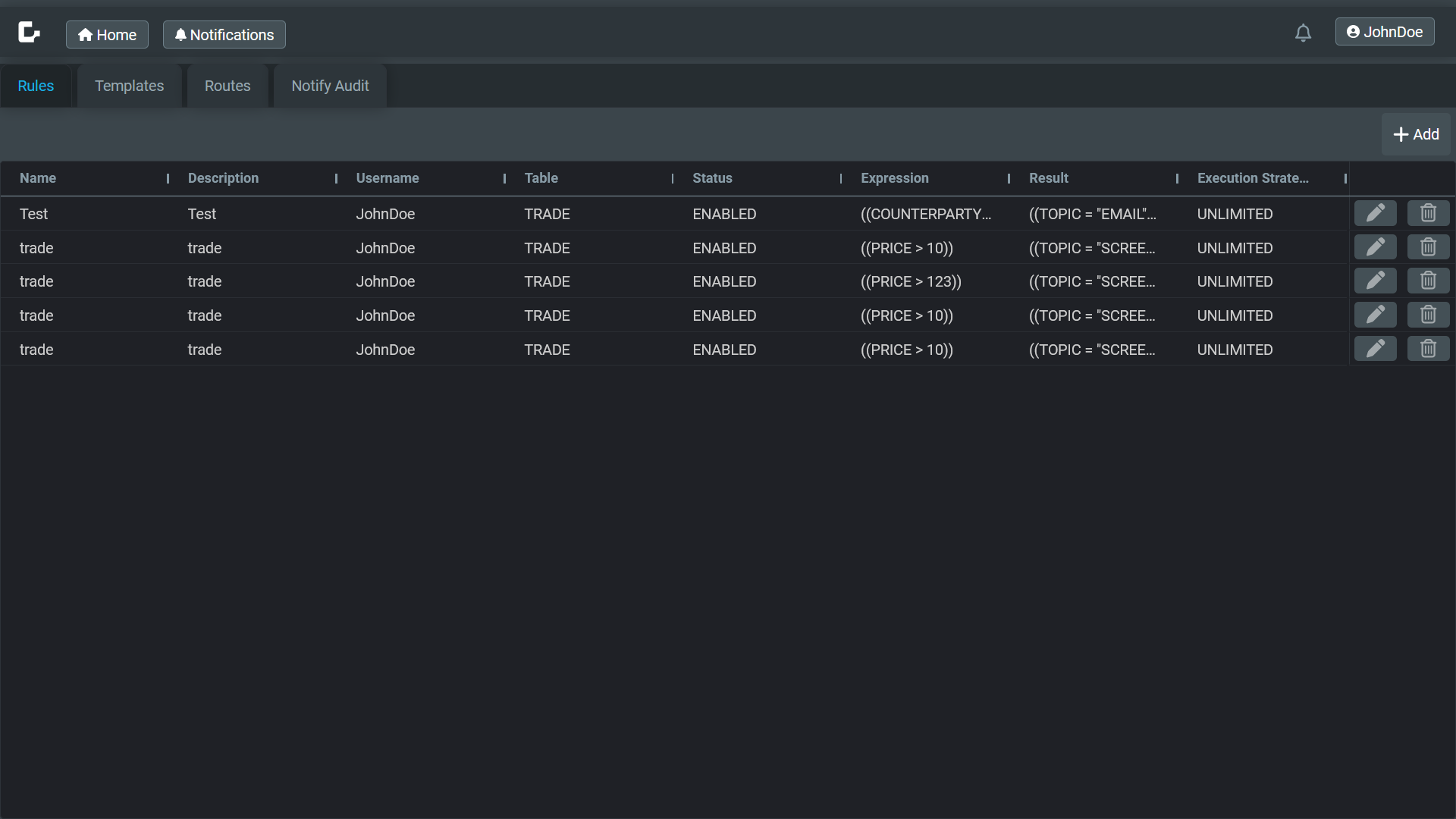
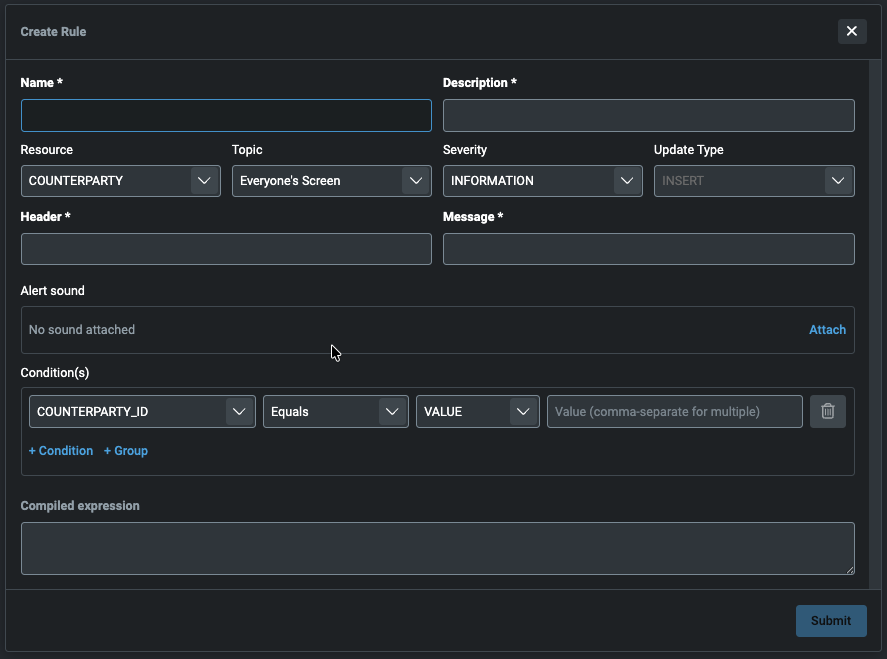
A rule consists of one or more conditions. The condition chain is a set of verification of values against an insertion in the table specified.
For example, a user creates a rule for the table TRADE that has only the condition PRICE > 100. When a record is inserted in that table (from any source: manual, Event Handler, file, etc.) with a PRICE value of 250, then the condition is matched. If the rule is enabled, a notification is sent to the specified destination.
The available destinations are the ones registered in Routes.
When you create or edit a rule, you can attach an Alert sound (MP3 or WAV, 2 MB or smaller). Use Attach or Replace to choose a file, Test to preview it, and Clear to remove it. The sound is stored with the rule and plays when that rule fires, unless a Sounds tab rule matches first.
Templates
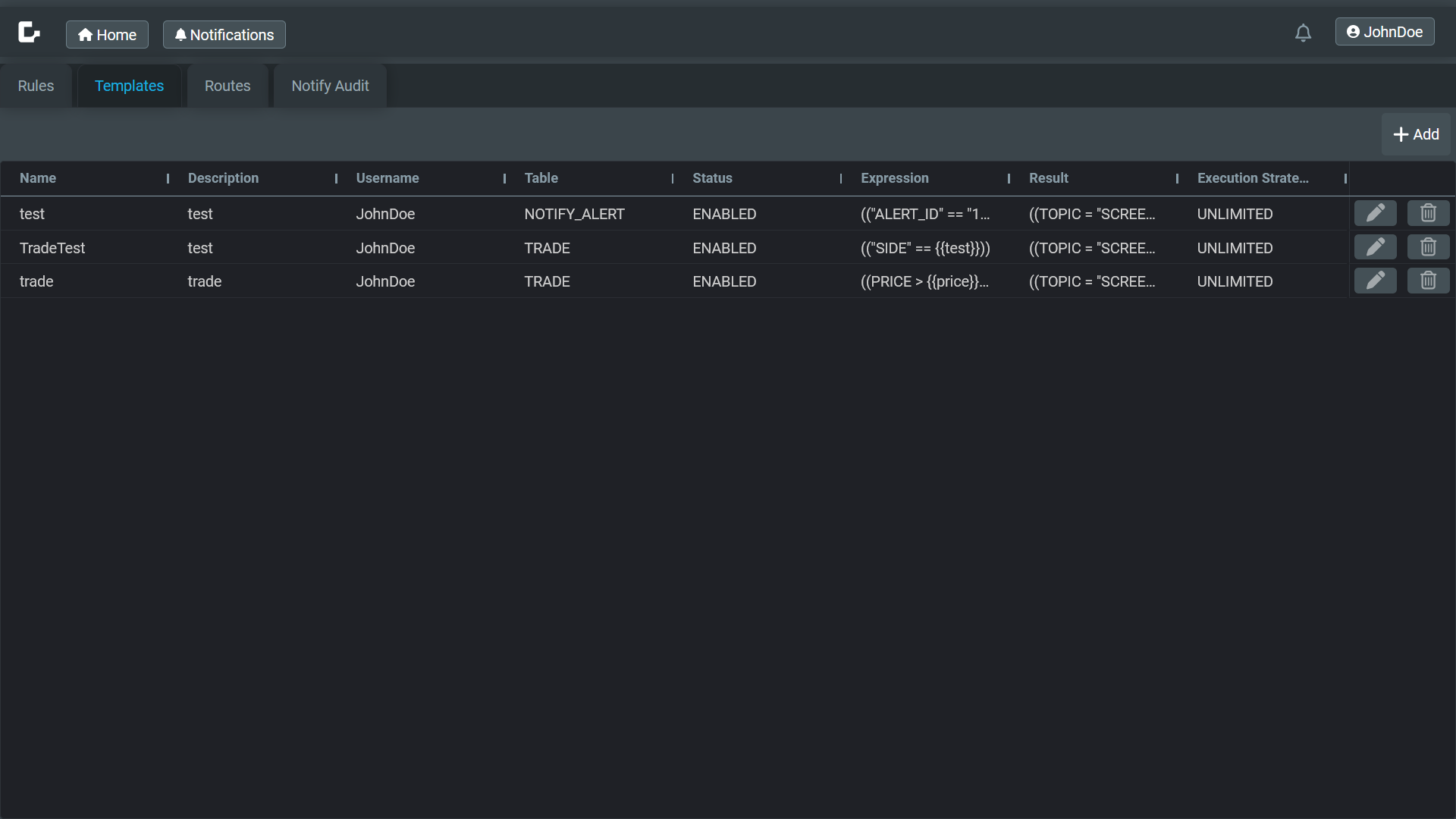
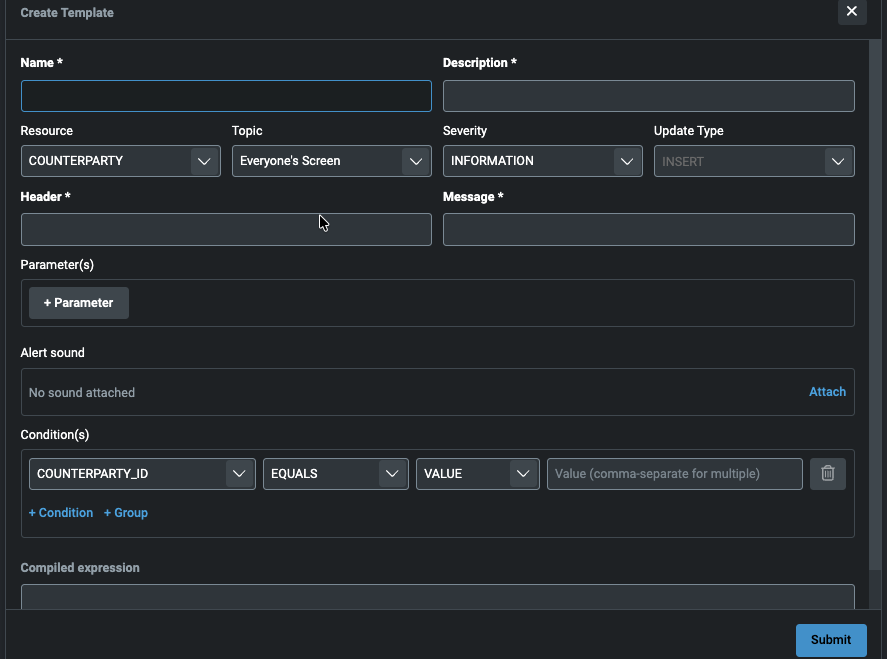
A template is the blueprint for a rule. The template must have at least one condition and zero or more parameters. The condition can be either TEXT or USER_ENTRY.
- TEXT: the user who creates or modifies a rule can specify a fixed value for the notification condition, e.g.
PRICE > 100(PRICE bigger than 100). This template will be available for all users on the Inbox Subscribe section. - USER_ENTRY: the user who selects this option in the condition section must then create a corresponding parameter, providing a label, name, type, and source. An end user can then select this template and specify an appropriate value for the parameter, e.g.
PRICE > {price}. In the Inbox Subscribe section, USER_ENTRY templates are labelled with curly brackets, for example,{price}. Different users can use this to create their own values. For example, user John can subscribe to this template and set the conditionPRICE > 450; user Thomas can subscribe to the template and set the conditionPRICE > 10; etc.
The available destinations will be the ones registered in Routes.
Templates also support an Alert sound, using the same Attach / Replace / Test / Clear controls as Rules. Subscribing to a template creates a rule for that user, so the template sound plays for those subscribed alerts.
Routes
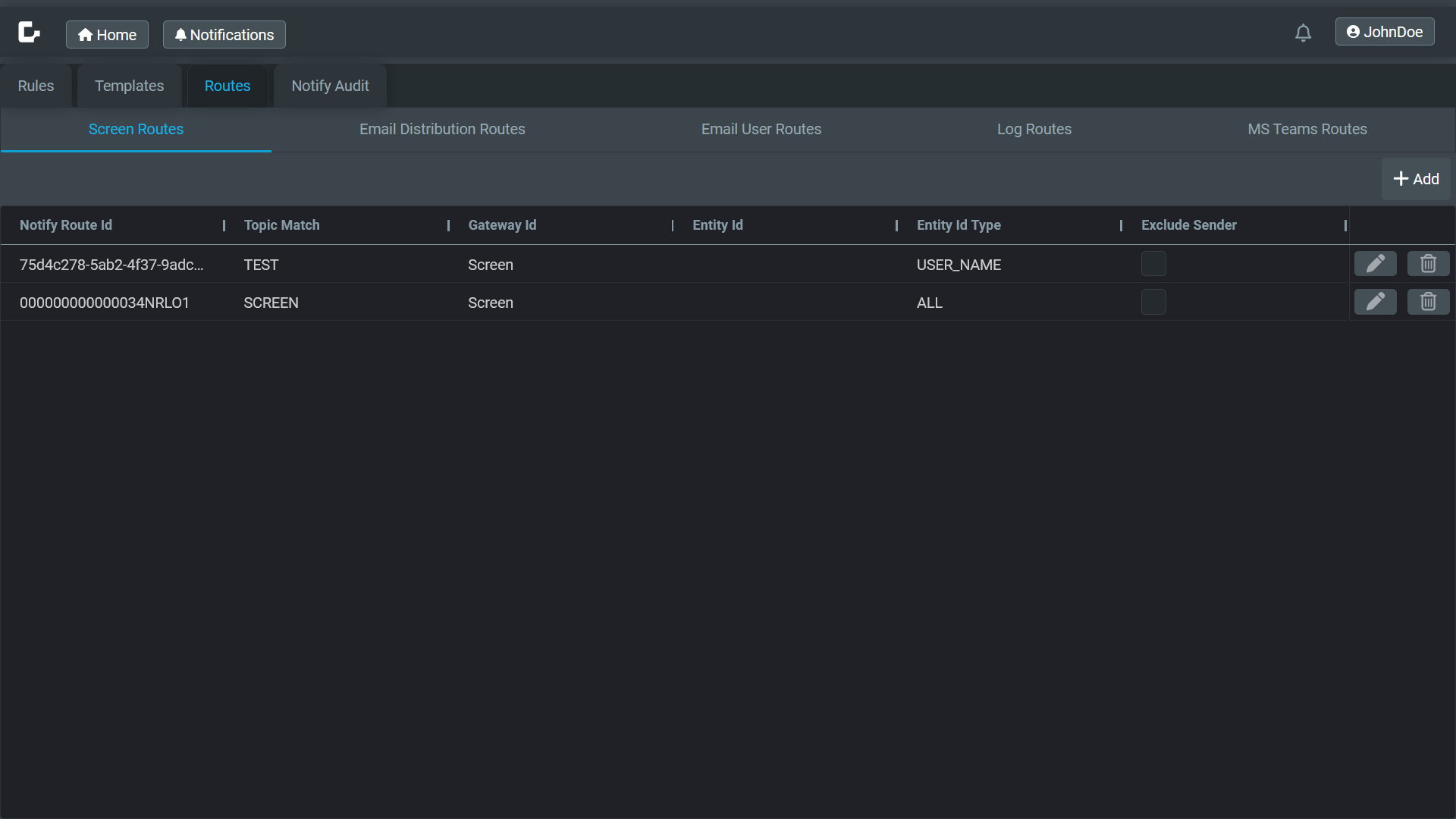
A route is the destination of the notification alert (where do you want your alert/notification/message to appear?). There are five types of route:
- Screen
- Email Distribution
- Email User
- Log
- MS Teams
There are specific fields to be filled for each route. All data provided must be correct, without typos, for the notification to be sent correctly.
Routes can be created, updated and/or deleted. There is a permission for each one of these operations for any route. Check it on permissions.
Notify Audit
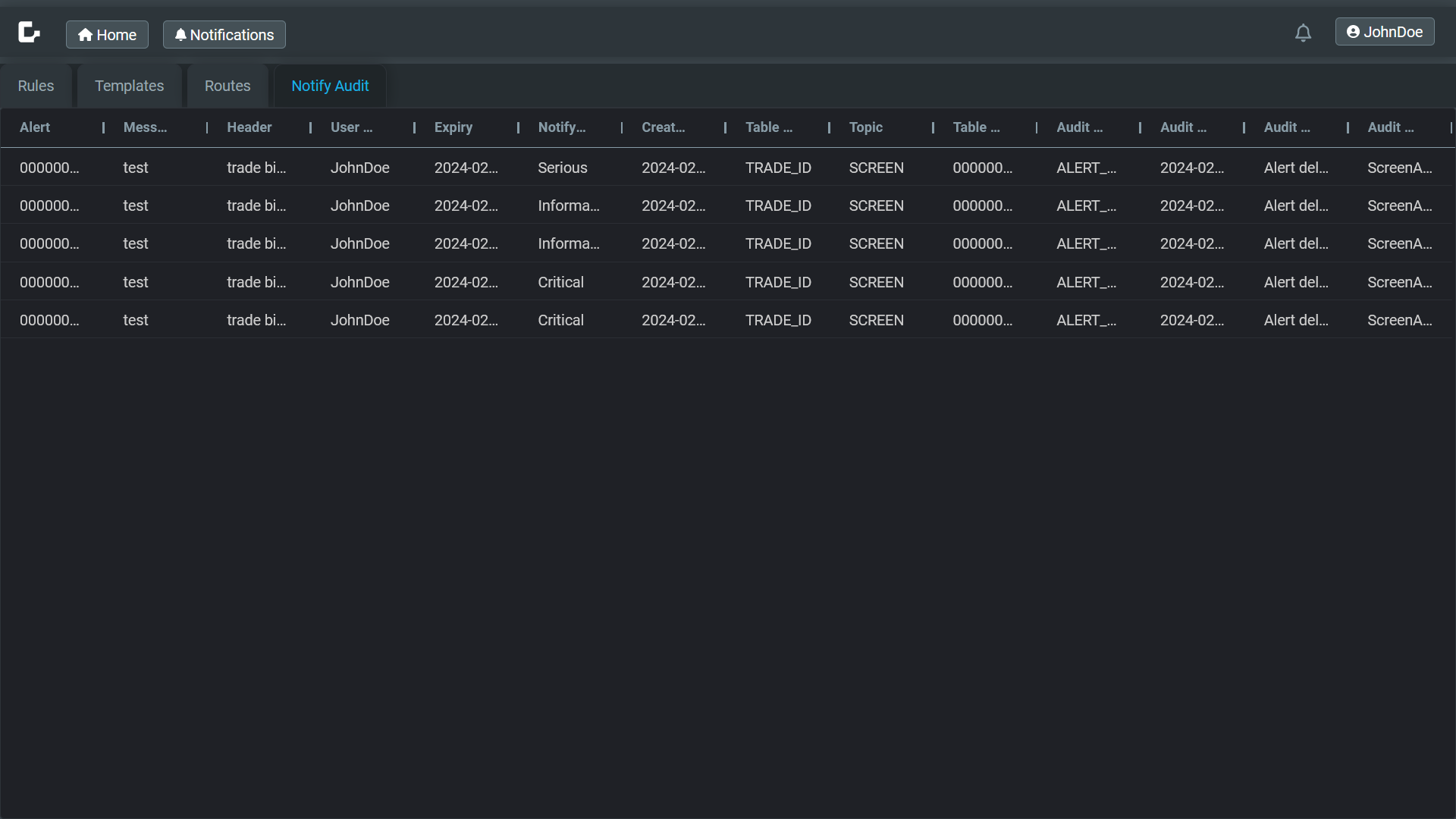
This shows a grid that contains all the notifications and alerts for all system users. You can filter by any column with any value.
Inbox
This is a sidebar component (Alerts Center) that shows the alert log, the templates a user can subscribe to, and the Sounds tab for configurable alert audio. Check the permissions for Inbox too.
Alert Log
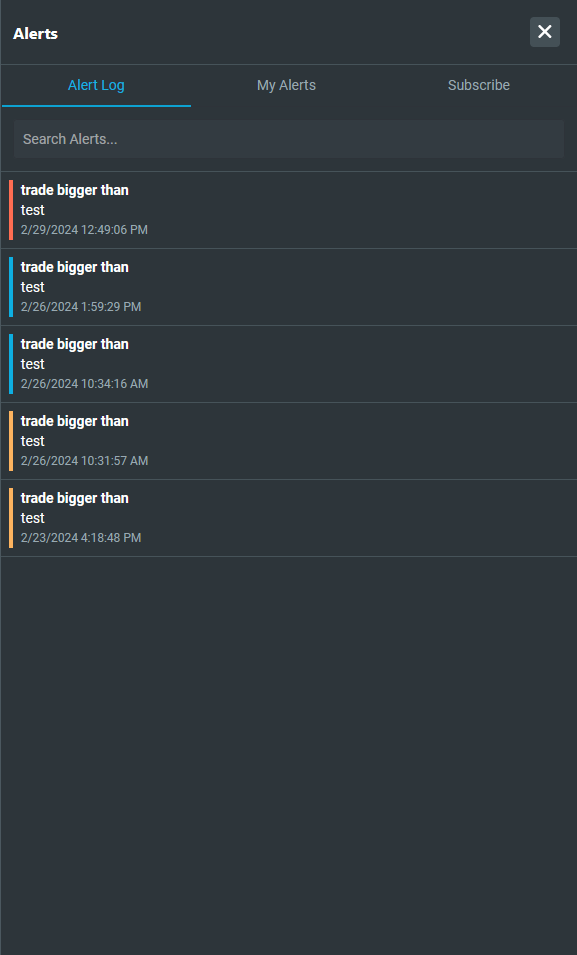
This is a list of alerts, ordered by the most recent first.
My Alerts
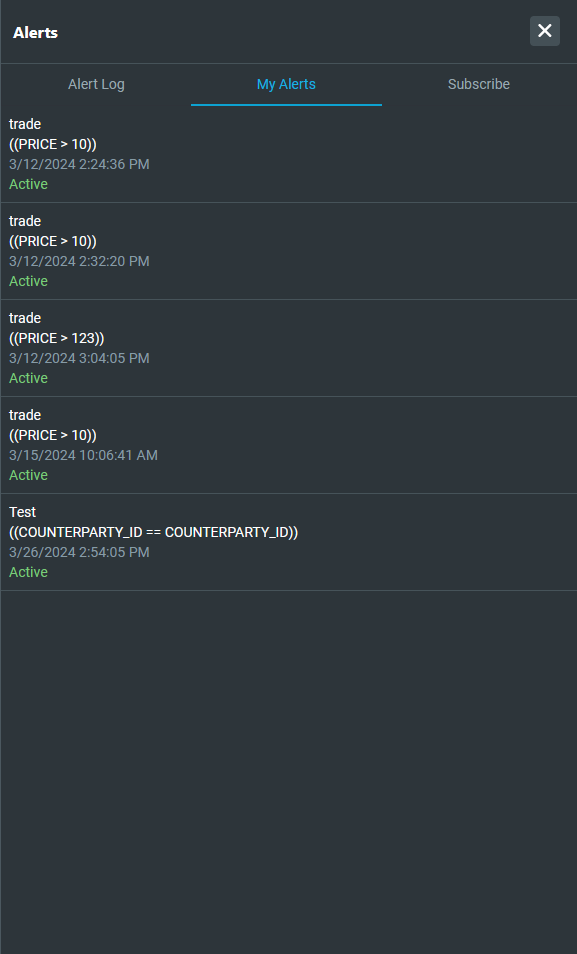
This shows all the rules created in the Rules section. The user can pause, resume and/or delete a rule.
Subscribe
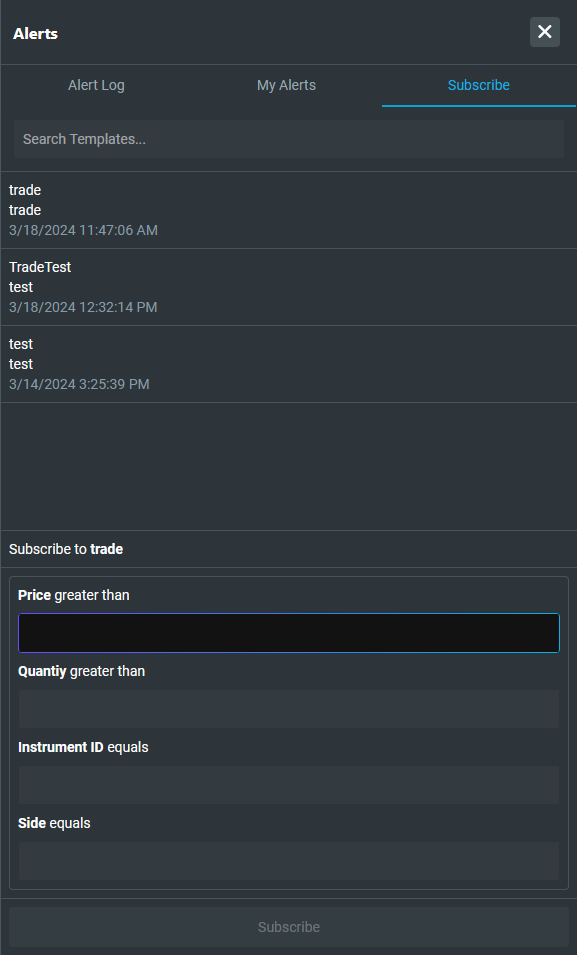
This shows all the templates that were created previously in the Templates section. A user can subscribe to any template. If the template has additional parameters, then the user must specify a value for each parameter to be able to subscribe to the template.
Sounds
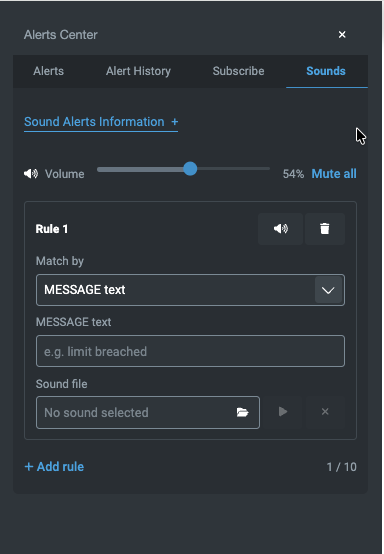
The Sounds tab in Alerts Center lets each user configure up to 10 local sound rules. These rules are stored in the browser (IndexedDB) and restored on reload. There is no bundled default sound.
Open Sound Alerts Information on the tab for a short reminder of the match options.
Each rule can match in one of three ways:
- MESSAGE text — the alert
MESSAGEcontains the word or phrase (case-insensitive, whole-phrase edges). For example,limit breached. - HEADER text — the alert
HEADERcontains the word or phrase (case-insensitive, whole-phrase edges). For example,Price alert. Patterns such as$100and50%are valid. - Notification rule — the new alert’s
DYNAMIC_RULE_IDequals the selected rule. Subscribing to a template creates a rule for you, so those appear in this list too.
For each rule you can choose an MP3 or WAV file (2 MB or smaller), test-play it, clear it, or mute that rule. The tab also has a volume slider and Mute all. Click Add rule to add another slot (up to 10).
When a new alert arrives, playback uses this order:
- The first matching Sounds-tab rule that has a playable file.
- Otherwise, the sound attached to the notification rule or template (if the alert includes
DYNAMIC_RULE_ID).
Notification rule matching and rule/template-attached sounds require the Notify server to populate DYNAMIC_RULE_ID on alert rows (Notify 8.15.10 or later). MESSAGE and HEADER matching work from the alert text alone.
Browsers may block audio until the user has interacted with the page. Choosing a sound file counts as a gesture.
Enabling playback
The Sounds tab only configures rules. Sounds play only if the layout listener is mounted once in the application, so audio still works when Alerts Center is closed.
Register FoundationSounds from @genesislcap/pbc-notify-ui and place <foundation-sounds> on the layout (the same target as the inbox flyout and rapid-notification-listener). Do not mount a second listener; the config UI is <foundation-sounds-panel> inside the Sounds tab.
import { FoundationSounds } from '@genesislcap/pbc-notify-ui';
import { html } from '@genesislcap/web-core';
import type { AppElement } from '@genesislcap/foundation-shell/app';

FoundationSounds;

export const notifySounds: AppElement = {
  targetId: 'layout',
  elements: html`
    <foundation-sounds data-pbc-asset-id="notify-sounds"></foundation-sounds>
  `,
};
If you are not using foundation-shell PBC assets, register the element and mount it once in the application layout:
<foundation-sounds></foundation-sounds>
Applications installed with GenX pick this up from the Notify seed. Existing apps that already include Notify need the layout listener added as above.
Disable playback with sound-enabled="false" on <foundation-sounds>, or by not mounting the listener.
<foundation-sounds> and the Sounds tab must load the same @genesislcap/pbc-notify-ui module instance. They share AlertSoundPlayer.shared. If the layout listener and inbox come from separate bundles (for example a host static import plus a federated Notify remote without singleton sharing), the tab configures one player while the listener plays from another — which looks like silence with no error.