Genesis Start
Genesis Start runs and previews your application on your local machine. It bootstraps the database, syncs your project's configuration, and starts and stops the application's processes, utilities and Web UI.
You can use it in two ways:
- The desktop window, described on this page. You click buttons to bootstrap, start and stop processes, run scripts and read logs. This is the normal way to work on a machine with a display.
- Headless mode, where no window opens and you drive Genesis Start over a REST API. Use this on build machines, in CI, or in a remote development environment with no display.
With the REST API enabled, an AI agent can also drive Genesis Start, in either mode, through its MCP server.
Both use the same engine underneath, so clicking Start on a process in the window does exactly what the equivalent REST call does.
If your project doesn't have Genesis Start yet, or you want to change how it runs (process profiles, database settings, system definition overrides, running several instances side by side), see Configuring Genesis Start.
Key terms
- Genesis home: the folder your application's processes run from locally. It holds the installed configuration, scripts and runtime files, including each process's log in
runtime/logs/. The Genesis Gradle plugin creates and maintains it, normally atbuild/genesis-homeinside your application module (for example,server/myapp-app/build/genesis-home). genesisSync: the Genesis Gradle task that brings the Genesis home up to date. It builds your project's local modules, copies in the configuration of its dependencies, and runsgenesisInstall. Gradle's up-to-date checks mean it does no more work than it has to. Genesis Start runs it before starting processes, unless you turn off Use Genesis Sync. Each process profile has its own version of this task. Genesis Start runs the right one for the profile you've chosen, but always shows it asgenesisSync.- Project overview: a JSON file, written by the Genesis Gradle plugin, that describes your project: its processes, scripts, Genesis home, and the features your platform version supports. There is one per process profile. Genesis Start reads everything it knows about your project from it.
Starting Genesis Start
From the command line, go to your project's server directory and run:
- Windows
- Mac OSX / Linux
.\gradlew.bat genesisStart
./gradlew genesisStart
If the command fails, you probably need to enable Genesis Start in your project.
The window opens with the process list in the middle and a toolbar down the left-hand side. Its title is <project> - Genesis Start, so with two windows open you can tell which project each one runs. The project name is the name of your project's folder (if that folder is called server, the name of the folder above it).
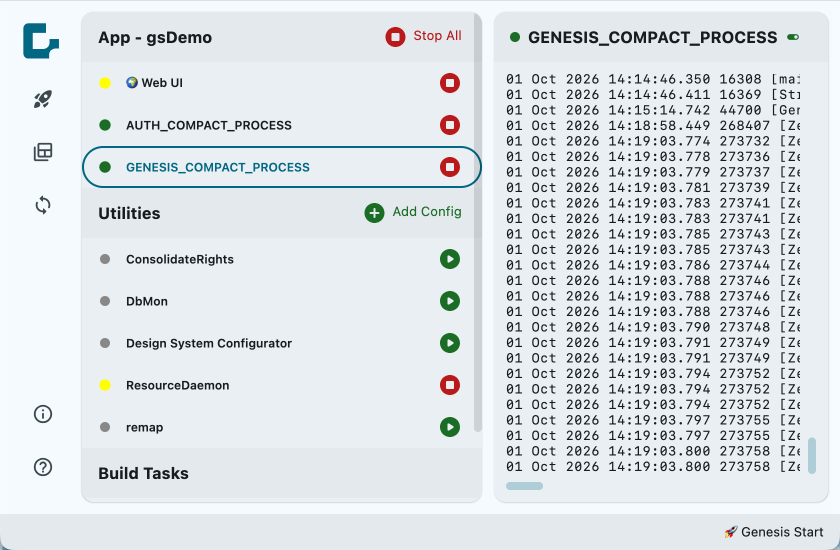
A few things to know about starting up:
- Auto-launch: add
-Pgenesis.start.autoLaunch=true(or just-Pgenesis.start.autoLaunch) to run Bootstrap and Launch as soon as the window opens. - Startup failures: the Gradle task waits 5 seconds after starting Genesis Start. If Genesis Start has already exited by then (for example, because it rejected a startup argument),
genesisStartfails, shows the exit code, and points you toserver/build/genesis-start/error.logandoutput.log. - Logged command: the task logs the full command line it used. Database credentials aren't part of it, and any
password=or Oracle JDBC credentials in other arguments (such as a JDBC URL insystemArgs) are masked as****.
The toolbar
Bootstrap and Launch

This button (the rocket icon) bootstraps the application with a single click. Use it:
- when you start an application for the first time
- after you have made changes to the database schema
If you haven't changed the schema, Start All is quicker.
Bootstrap and Launch does the following:
- Runs
genesisSyncto sync the project. This step is skipped if File → Settings → Use Genesis Sync is unchecked. - Runs the
remapscript (with--commit), then loads any test data. - Runs the
ConsolidateRightsscript (with--commit). - Starts every Application process that is configured to start and is currently stopped. The core
GENESIS_*processes start one at a time, 5 seconds apart, so they don't all hit the database at once. The rest then start together.
The Web UI starts at the same time as these steps, not after them.
If anything fails, a Start failed dialog shows the error. Every failure is reported, including a Web UI that couldn't start. If a script such as remap exits with an error, the status bar also turns red and shows the message (for example, "Remap exited with code 1") until the next sync starts.
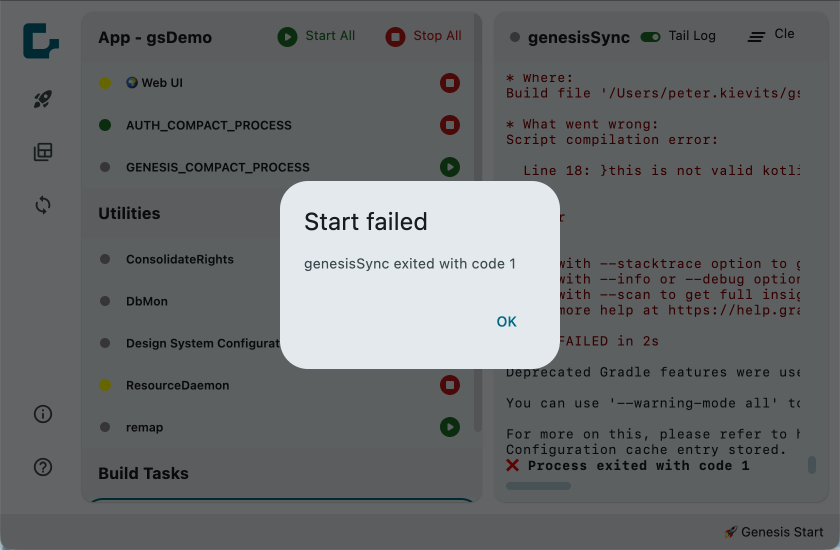
The button is disabled while a sync or bootstrap is in progress.
Automatic test data loading
Since 8.14
If your project has a testData folder in the project root (next to server/), the CSV files in it are loaded automatically after remap runs in a local environment. Put the CSV files directly in testData/: subfolders such as testData/data are not read. See project structure for details.
The folder structure should be:
<project-root>/
├── server/
└── testData/
    ├── RIGHT.csv
    ├── PROFILE.csv
    └── ...
The testData folder is not loaded in a production environment. It is only used for local development and testing.
Import data

This button opens a file picker where you can select one or more CSV files to import into your application's database. For each file, Genesis Start runs the Genesis SendIt command with -t <filename>, from the folder the file is in. SendIt takes the file name without .csv as the table name, so each file must be named after its target table; for example, FUND.csv loads table FUND. Several files are imported in parallel, so the order isn't guaranteed.
Sync Processes

This button synchronises any changes made to your project's process configuration. It runs the project's sync task, then reloads the project overview, so the process list and the scripts available in Run Script are brought up to date. No processes are started.
When File → Settings → Use Genesis Sync is enabled (the default), Genesis Start runs the sync task before it starts anything, but it does not reload the project overview. Genesis Start launches each process with the arguments held in the project overview, so changes to your process definitions (*-processes.xml) only reach the processes it launches after you click this button, or after you start Genesis Start again with the genesisStart Gradle task. Use it whenever you add, remove or change processes or scripts.
Application Info

The ⓘ button, just above the help icon, opens the Application view.
Help
The help icon (?) at the bottom of the toolbar opens the Genesis Start documentation in your browser.
The process list
The process list has three sections: Application, Utilities and Build Tasks. Click any row to select it and show its log in the log panel.
The Application section's header shows the project name, as App - <project> (a long name is shortened). Hover over it for the project name, the Genesis home and, if it isn't 0, the port offset.
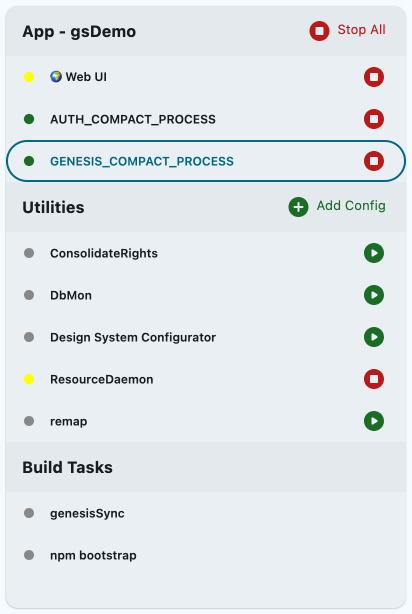
The dot next to each process shows its state:
| Dot | State |
|---|---|
| Green | Healthy: the process has reported itself healthy. |
| Yellow | Starting, Stopping, or Running but not yet reporting its health. |
| Red | Unhealthy. |
| Grey | Stopped. |
Genesis Start gets each process's health from the ResourceDaemon utility. Bootstrap and Launch and Start All don't start it, so until you start ResourceDaemon from the Utilities section, running processes stay yellow and never turn green or red.
Starting and stopping individual processes
Each row has a button to start or stop that process:
- Play (▶) starts the process. It is shown when the process is stopped and can be started. If the process can't be started (for example, a sync it depends on fails), the Start failed dialog shows why. If the process starts and then exits with an error, the dialog doesn't appear; the process's log shows the output, ending with the exit code.
- Stop (⏹) stops the process. It is shown whenever the process isn't stopped, and it is disabled while Genesis Start is still launching the process.
Both buttons are disabled while a sync is in progress.
Start All and Stop All

The Application section's header (App - <project>) has two buttons:
- Start All runs
genesisSync(if Use Genesis Sync is enabled), then starts every stopped Application process and the Web UI. This is the quickest way to start your app if you haven't made any changes to the schema. As with Bootstrap and Launch, the coreGENESIS_*processes start 5 seconds apart, and failures show the Start failed dialog. - Stop All stops all running Application processes. Other processes stop first, then the core
GENESIS_*processes 5 seconds later. Genesis Start waits for each process to exit and force-kills any that don't. Anything still waiting to start (including processes held back by the 5-second stagger) is cancelled. Utilities and running scripts aren't stopped; stop them with their own buttons.
Utilities
The Utilities section lists the scripts in your project, such as DbMon. Start and stop them with the buttons on each row, as with Application processes. You can type into the log of a running utility; see Sending input to a utility.
The section header has an Add Config button, which opens the Run Script dialog.
Build Tasks
The Build Tasks section shows the Gradle tasks Genesis Start runs for you, such as genesisSync. You can't start these yourself; they run as part of Bootstrap and Launch, Start All, or starting a process. Click a row to see the task's output.
To show or hide this section, use View → Show Build Tasks. Clicking the status bar while a task is running turns this section on.
The log panel
The panel on the right shows the log of the selected process. When nothing is selected, or the log is empty, the panel shows a Learn More link. This opens a short Getting Started guide; close it with Dismiss, by pressing Escape, or by clicking outside it.
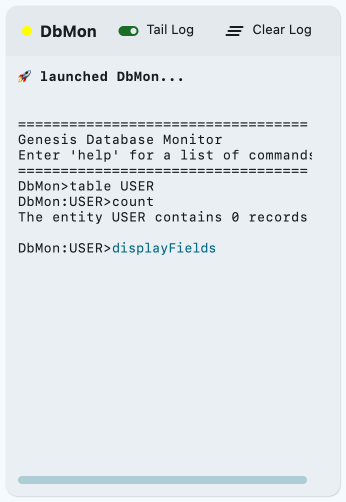
The panel header shows the process's state dot and name, and two buttons:
- Tail Log turns auto-scrolling on or off. When it's on, new lines scroll into view; when it's off, you can scroll back through the log.
- Clear Log clears the log shown in Genesis Start. The log file on disk isn't changed.
You can select and copy text from the log. Long lines aren't wrapped; scroll sideways to read them.
Each process keeps its own view of the log: whether Tail Log is on, where you have scrolled to, and any input you have half typed. When you switch to another process and back, or open and close the Application view, they are as you left them.
When a process ends
The last line of the log says how the process ended:
✅ Process finished (exit code 0): it exited cleanly.❌ Process exited with code N: it exited with an error.❌ Process stopped: Genesis Start stopped it (with its Stop button, Stop All, or when Genesis Start shut down).Process ended (exit code unknown): the process was picked up from an earlier run and ended on its own, so Genesis Start can't see its exit code.
A build or npm task that is stopped usually exits with a non-zero code (for example, 143), even though the last line says "stopped". Occasionally, a process's own final output appears just after this line.
Genesis Start adds this outcome line itself: it appears in the log panel and in the response from GET /api/processes/{processId}/log, but it isn't written to the log file on disk.
Sending input to a utility
For a running utility such as DbMon, you can type straight into the log. Your text appears after the last line (for example, after a DbMon> prompt). If the log doesn't have focus, click at the end of it. Press Enter to send the line to the process. Application processes don't accept input.
Where the logs are on disk
Each Application process writes its own log file, normally <Genesis home>/runtime/logs/<PROCESS_NAME>.log. The log panel shows that file as it grows.
Utilities, build tasks and the Web UI don't have their own log files: the panel shows their console output, which is only kept inside Genesis Start. In headless mode, you can read the output of build tasks and scripts with the REST API.
Genesis Start's own output goes to server/build/genesis-start/output.log and error.log.
The status bar
The bar along the bottom of the window shows:
- A spinner and a short message (for example, "Running genesisSync") while a sync or similar task is running. Click it to show the Build Tasks section.
- A red bar with the error message if a bootstrap script fails. This clears when the next sync starts.
Menus
File
- Settings → Use Genesis Sync: when checked (the default), Genesis Start runs
genesisSyncbefore starting processes and bootstrapping. Uncheck it only if you want to start processes without syncing first; for example, for speed or because you sync some other way. - Exit closes the window. This does not stop the processes that Genesis Start started. See Closing Genesis Start.
Process Profile
This menu selects the process configuration to run. See Process profiles for what each one does.
When you choose a profile, Genesis Start reloads the project overview for it, and the process list and scripts are updated to match.
The menu items are disabled while any process is running, starting or stopping, including utilities, scripts and build tasks. Stop everything first, then switch.
View
- Dark Theme switches between the light and dark themes.
- Show Build Tasks shows or hides the Build Tasks section.
- Application Info… opens the Application view.
Help
- Genesis Start Documentation opens the Genesis Start documentation in your browser.
The Application view
The Application view shows what this window is running, and is where you change the port offset. Open it with the ⓘ button in the toolbar, or View → Application Info…. It opens in place of the log panel; to close it, click a process (to go back to its log) or use the view's close button.
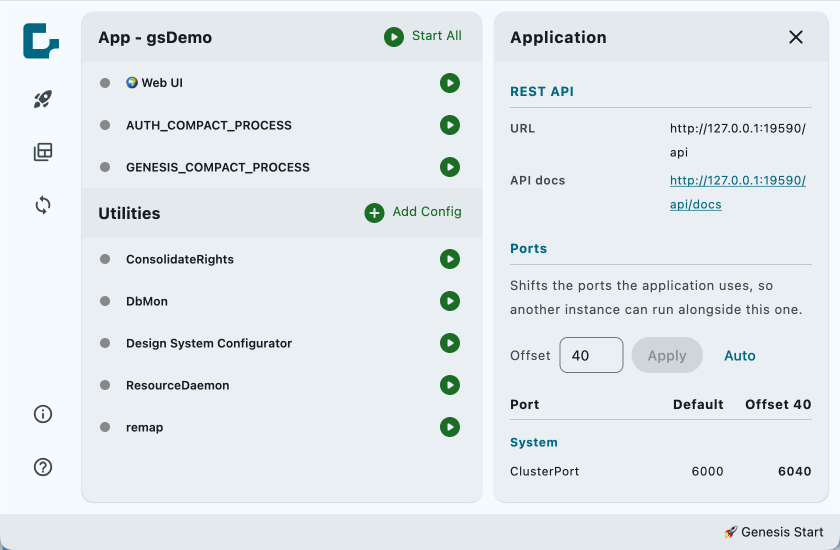
It has six sections. Scroll down the view to reach the later ones:
| Section | What it shows |
|---|---|
| Project | The project name, project version and Genesis version. |
| Environment | The Genesis home, Java version and Java home. |
| System definition overrides | The system definition overrides in effect, each labelled with where it came from: "command line", "project file" or "home file". Overrides that apply to a single process are listed under "<process> only". Shows "none" if there aren't any. |
| REST API | The REST API's address and a link to its documentation. Only shown when the REST API is enabled. |
| Ports | The port offset editor and the ports for each service. See Setting the port offset. |
| Features | The features your platform version supports, its experimental features, and whether experimental features are enabled. |
Values read from the project overview show "not known yet" until it has loaded. You can select and copy any value.
Override values are shown as they are set, except for keys containing PASSWORD, SECRET, TOKEN or KEY, which are masked as ********. A secret stored under any other key name is visible here.
Running a script
To run a script with your own arguments, click Add Config in the Utilities section header. This opens the Run Script dialog.
- Select Script: choose the script to run. You can type to filter the list.
- Script Arguments: optional arguments, as a single line. They are split on spaces, with no support for quotes or escaping.
- Working Directory: optional folder to run the script in. Type a path, or click Select Folder.
Click Run to start the script and close the dialog. The run appears in the Utilities section, where you can select it to see its log. Close shuts the dialog without running anything.
Closing Genesis Start
Closing the window doesn't stop the processes Genesis Start started. They keep running, and the next time you start Genesis Start for the same project, it picks them up again. Processes started by Genesis Start 0.1.x, or not started by Genesis Start at all, aren't picked up; stop those yourself. If you want them stopped, click Stop All before you close the window.
Headless mode works differently: it stops its processes when it shuts down. See Stopping headless mode.
Summary
| Action | What it runs |
|---|---|
| Bootstrap and Launch | genesisSync (if enabled), remap, ConsolidateRights, then all stopped Application processes, with the Web UI alongside. |
| Start All | genesisSync (if enabled), then all stopped Application processes, with the Web UI alongside. |
| Play on a row | That one process. May run genesisSync first if Use Genesis Sync is on. |
| Add Config → Run | One script, with your arguments and working directory. |
| Sync Processes | The project's sync task, then reloads the project overview. Starts no processes. |
| Import data | SendIt for each CSV file you select. |